Importing SHP files with ZWGeo
Check how to import shapefiles into ZWCAD with our extender
ZWGeo is great extension for map work, especially when working on SHP files. Learn how to work better, easier and faster with our solution.
Launching ZWGeo
After installing ZWGeo, please launch it from the desktop icon. You can later load application via Load function on ribbon if you open ZWCAD by other means.
You will then see three tabs on the ribbon menu. The one we’re interested now is ZWGis:

Import SHP into CAD project
When you start the Import SHP function from the ribbon, the following menu will open:
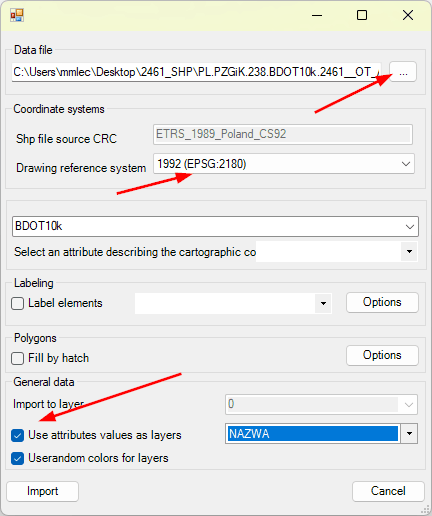
The button in the Data File is responsible for indicating the location of the source file. There are many SHP files in the folder itself; usually the largest ones contain buildings. I chose to use the land division units in the OT_ADMS_A.shp file.
It is important to set the correct coordinate system. If we import more objects in different layouts, they will diverge from the drawing.
Instead of importing CAD objects per layer, I chose to create new layers based on the NAME attribute. This gave me the following result:
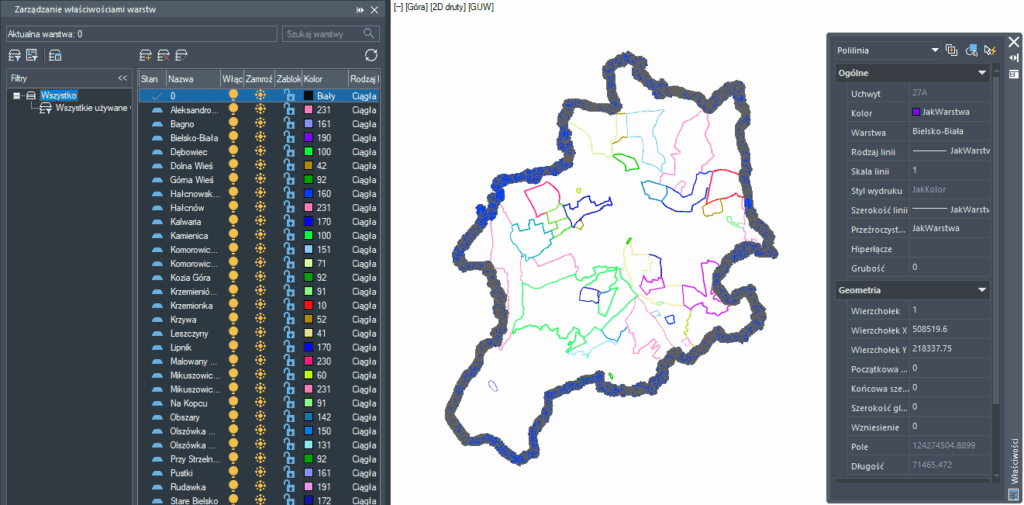
ZWCAD has created a number of layers, marked with different colours, on which the settlement boundaries are located. These are all editable CAD objects ready for further work.
I have also added buildings, which is almost the largest SHP file in the case of Bielsko-Biała. After almost a minute, 37565 objects had been added to my project.
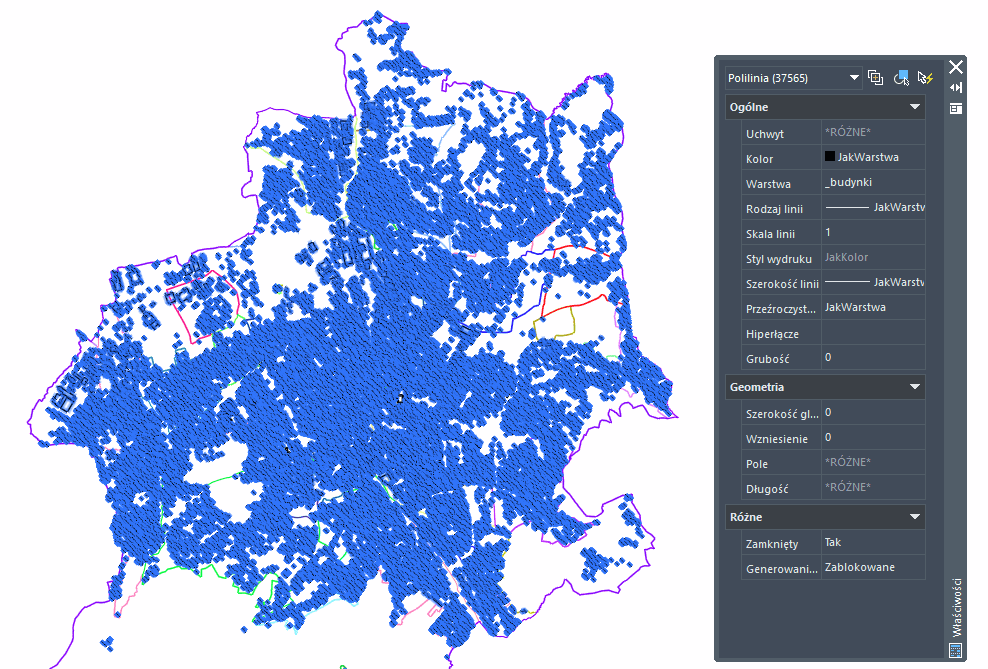
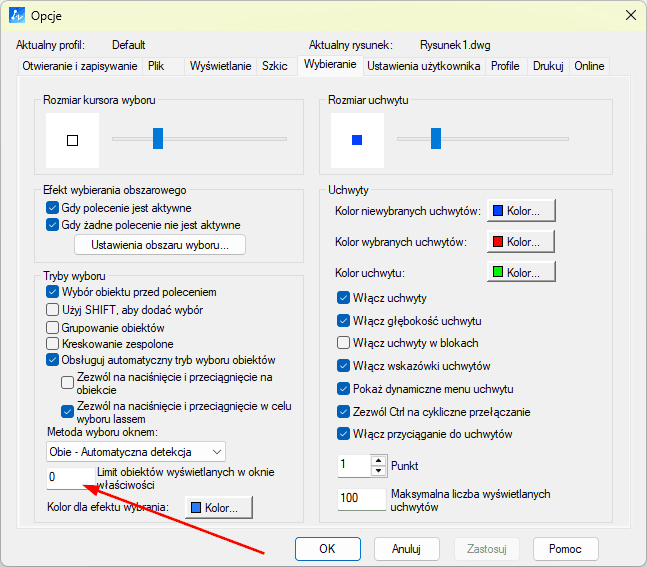
If the number of objects is not displayed when such a large number is selected, this may be due to the display limitation set in the programme options. You should then go to the Selection tab and change the value to a larger one, or set 0 for no limitation.
All objects inserted in this way are fully editable and the insertion itself takes literally seconds. Even with weaker computers and larger files, the process will not take more than a few minutes.
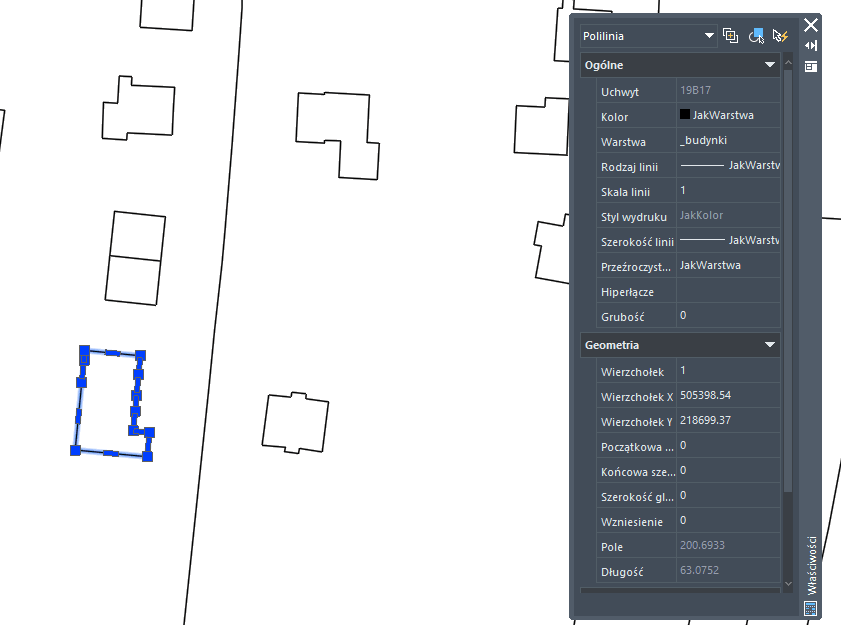
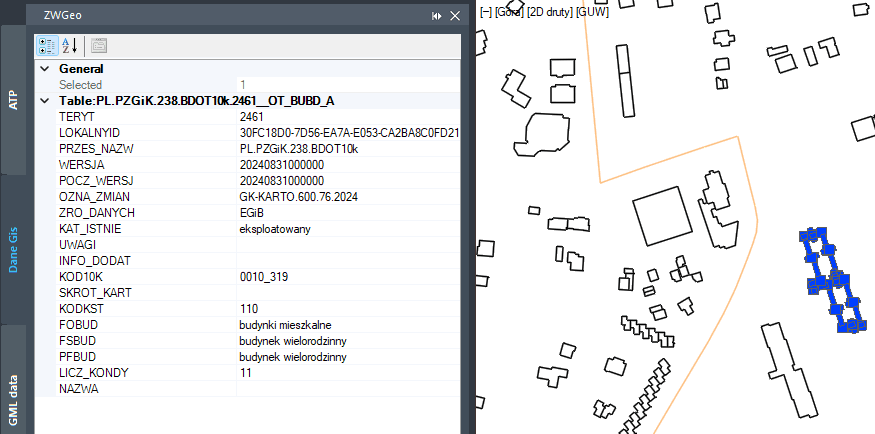
In addition, object attributes can be checked, changed and previewed in the GIS panel.
The ZWGeo application also allows objects to be described and marked in a simple way:
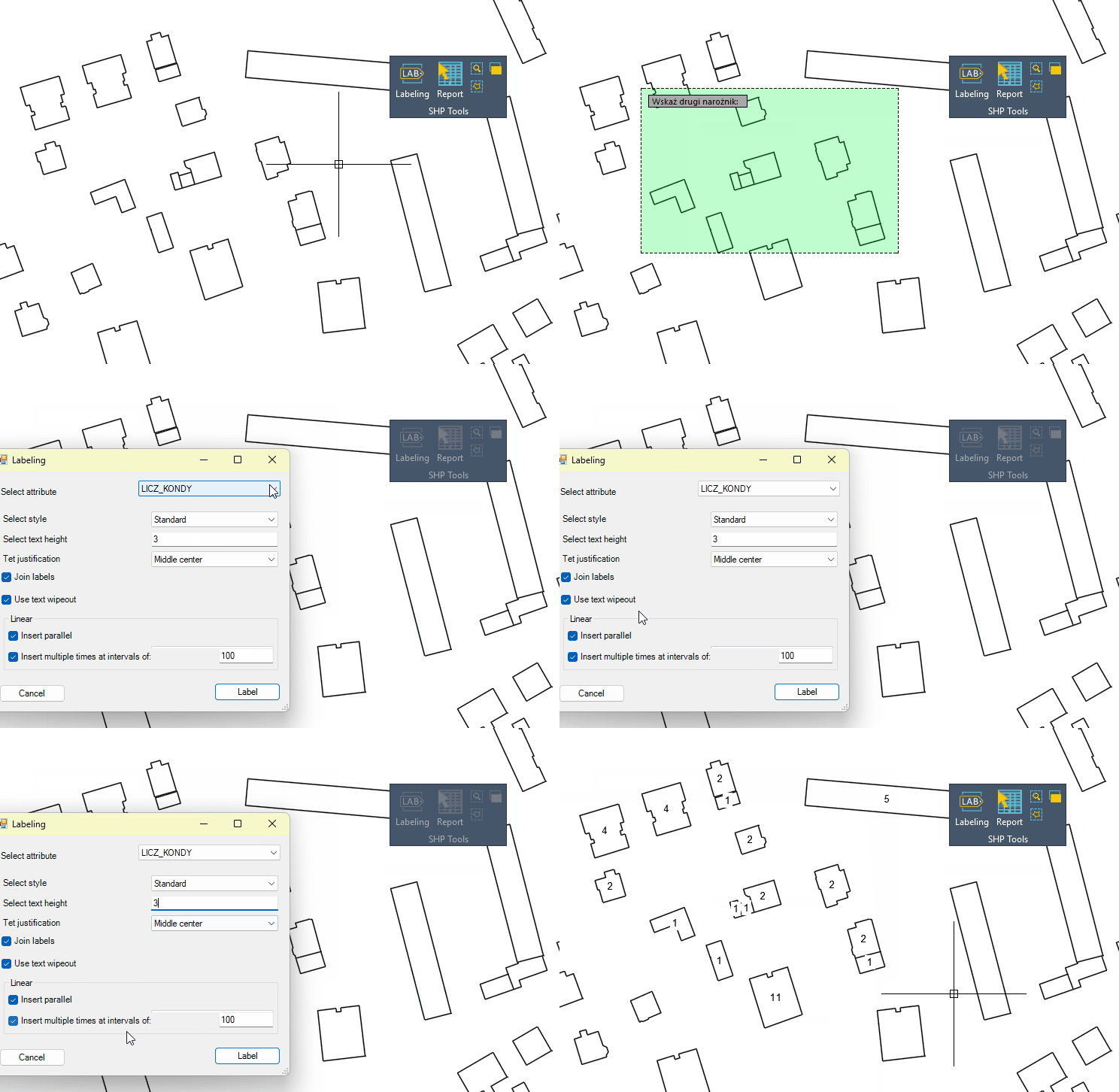
Using the description function, I selected the objects and chose the attribute that was applied to the selected buildings. In this case, it is the number of storeys.
Final note
I encourage you to test the ZWGeo applications on your own examples.
Note: although the overlay loads a .shp file, it should be accompanied by other, supplementary files as we see, for example, in the package downloaded from the geoportal.

When uploading this type of file, please make sure to include the other files that will be needed to read the .shp correctly. They need to be in the folder with .shp file.