
Block and group management in CAD
Check how easy it is to work on blocks, attributes and groups in ZWCAD with ZWExtender
ZWExtender is a brand new application of ours, that came to be as a fusion of many applications made for our customers. The feature we’re dealing with today is from Block Manager and Group Manager.
I’ll show you how to use ZWExtender, where to look for the tools discussed, and why they are so useful. Feel free to come along.
To begin with, the installation of ZWExtender
It’s worth mentioning at the beginning that each of our applications is exclusively for ZWCAD Professional.
After going through the installation process, our application will be added to ZWCAD. In order to speed up work on the programme, when our addons are not in use, they aren’t loaded by the programme. In order to use ZWExtender, it needs to be launched via a dedicated icon on the desktop or from within the programme via the Load function. This will load the application into the programme so that its functionality can be used.

Now let’s take a look at the main application panel, which will accompany us throughout if we want to use it, of course.
ZWExtender panel in ZWCAD
The Blocks and Groups button, located next to the function that loads applications, is used to launch the panel with blocks, attributes and groups.
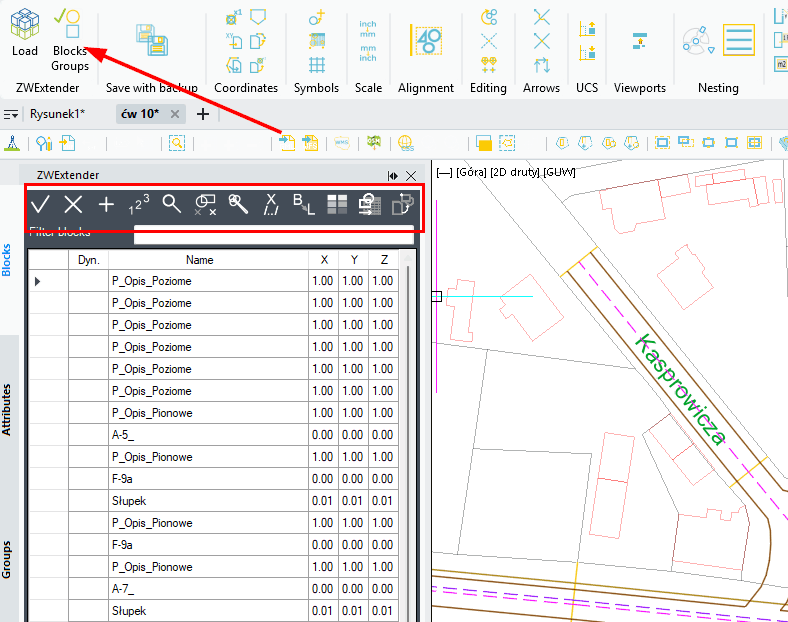
On the left side, you can see a panel that can be positioned, pinned, or relocated in any way. ZWCAD has significantly extended the customisation of this panel so that it can be dynamically relocated.
The buttons at the top of the blocks tab refer to the functions that can be used on these blocks. The same functions are available in a second tab on the ribbon, the Block Manager.
The panel itself has three tabs, the second refers to the attributes of the blocks, and the third to the groups.
The example project you see in the picture has signs inserted with another of our applications, ZWTraffic. It inserts blocks of traffic sign boards with descriptions, references, and bases. This is all further grouped together to make them easier to manage. Let’s take a look at how such signs are displayed in our ZWExtender application:
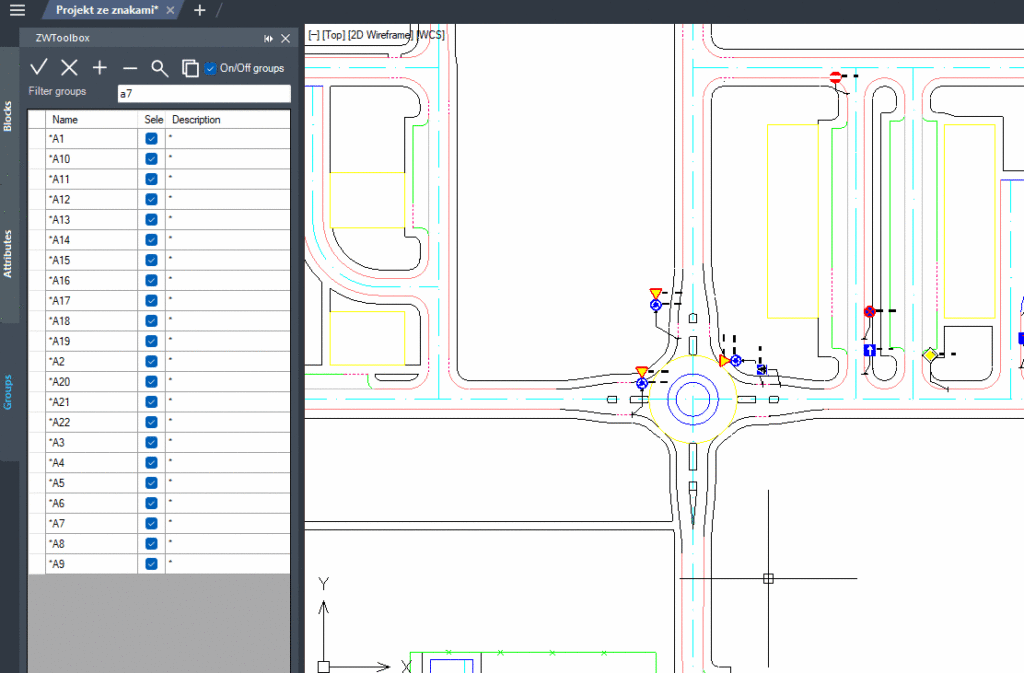
Here, you can see how easy it is to search for blocks in a drawing. There is a list of all those in the project, together with their attributes and groups, if any.
You can use the fields next to it to change the scale of the blocks, or use the commands above to edit them.
Example of block edition
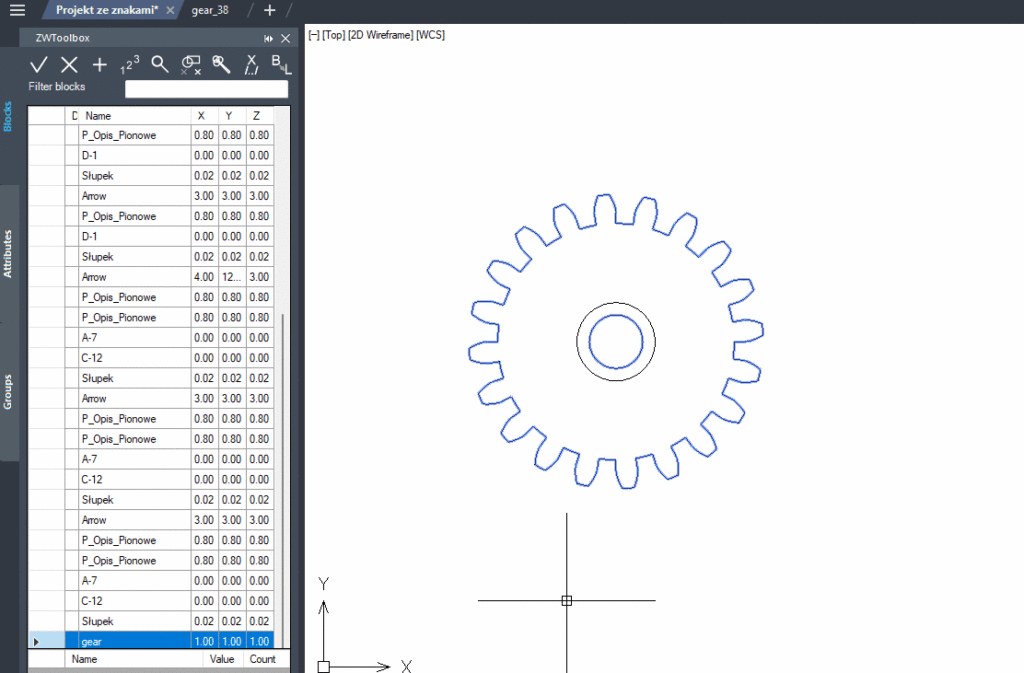
Here you can see a simple example of adding an element to a block and changing its base point directly from the panel. Block Manager gives you many more options to search for blocks, merge objects into a block, clean up unused ones, or use two different ways to break blocks. One breaks elements in the traditional way, and the other creates a new layer named after the block where it breaks objects.
There are a lot of functions, so I recommend taking a look at the manual that comes with the programme, accessible from the ZWExtender tab.
On the ribbon of our CAD programme, there is a Blocks tab, where there are also several handy functions for editing blocks, such as quickly creating them or removing parts from them. We can also easily make a list of blocks in a drawing, which will be displayed in the command line.
Command:
Command: _BLOCKSUM
Enter an option [Layer/Selection set/All] <All>:
42 blocks in this drawing.
Command: _BCOUNT
Press <ENTER> for all blocks or...
Select objects:
Block..............................Count
------------------------------------------------
gear..........................1
Arrow.........................5
P_Opis_Pionowe................13
D-4a..........................1
Słupek........................10
B-36..........................1
B-2...........................1
D-3...........................1
D-6...........................1
D-1...........................2
A-7...........................3
C-12..........................3
The same applies to groups. The functions also allow you to manage groups and add, delete, or break them up.
To summarise
ZWExtender has a lot of tools that will make working in ZWCAD easier. I’ve only highlighted a few of the features in this article, but for those who use blocks or groups they will certainly prove useful.
I encourage you to test the addon yourself, it’s available together with ZWCAD for 30 days in a trial version. Simply download and install from the product page.
As ZWExtender was created from features that were needed by our users, I’m sure every CAD designer will find something for themselves there. In other articles you’ll find more functionalities that the application offers.